Single-Line Text and Fonts for Pen Plotters
Set stroke-based lettering with Plotter Text, pick a font from the 55-font specimen sheet, and check characters, scale and paths before plotting.
By DrawingBots · Published
Single-line fonts versus outlined text
Most typefaces describe the filled outline of each letter. Convert one to paths and you get that outline, so the pen draws both sides of every stroke and the letter comes out hollow. A single-line font describes the stroke itself, the line a pen would actually follow.
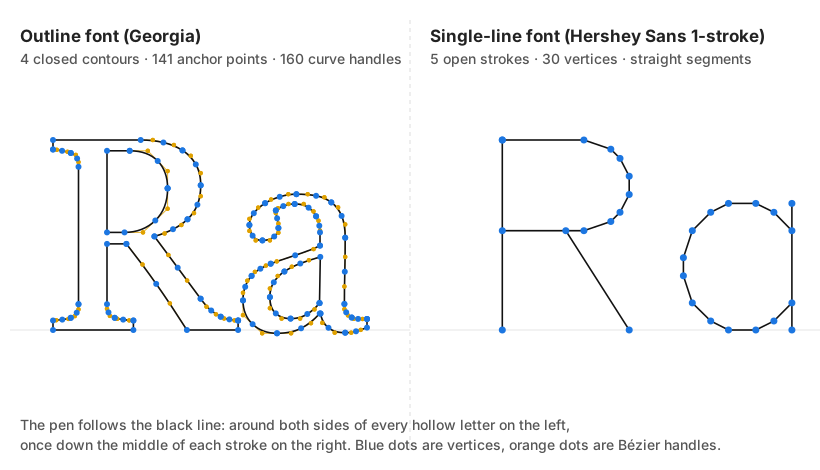
“Single-line” does not mean one unbroken path per letter. A letter can be several strokes with pen lifts between them, and some decorative fonts use extra strokes on purpose. Look at the paths a font produces and think about how your pen will handle them.
Plotter Text turns the bundled stroke fonts into SVG paths, either on a blank canvas or over a background SVG. What you download is artwork, not G-code.
Create and position your lettering
- Open Plotter Text. Select a text layer, or add one with the layer controls.
- Replace the layer’s text with
PLOT 123. A short sample like this makes missing characters and odd spacing easy to spot. - Choose Hershey Sans 1-stroke in the Single-line font picker and wait for it to load. On a small screen the picker is a select menu.
- Adjust Font size and Character spacing. Line height and Alignment apply to multiline text.
- Drag the text into place on the canvas and use Rotation if you need it. Keep the whole word inside the page. If you have several layers, make sure the one you are editing is selected.
Use Stroke Font Studio when you want to edit the font itself. Plotter Text is for laying out lettering in a drawing.
Export paths and check the result
Turn on Export text only to leave the background artwork out, then click Download SVG. Leave it off when the background is part of the drawing you want. Either way, keep a separate copy of the original artwork.
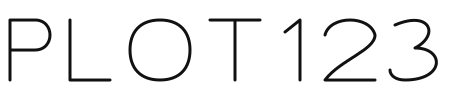
Open the download in a vector editor or your plotting software and check three things: the letters are paths, no characters are missing, and the layout fits the page you will actually plot on. Set the final scale there and look at the toolpath before you draw.
Stroke width only changes how thick the line looks on screen. It does not change your pen, and it will not add parallel passes to fill out a heavy letter. The plotter draws the centreline with whatever pen is loaded. Plot a short line of text with your real pen and paper before committing to a big piece.
Character coverage and font limitations
Character coverage varies from font to font. Check punctuation, accents, symbols and every language you need, both in the preview and in the exported file. A missing character may be skipped silently rather than substituted.
The specimen sheet below shows every bundled Latin font writing the same pangram, so you can compare weight, width and character before choosing. It was generated from the font files, and the sheet is itself plottable: the labels are set in Hershey Sans 1-stroke. I left out the symbol, ornament and non-Latin fonts (Hershey Astrology, Cyrillic, Greek, Japanese, Markers, Math, Meteorology, Music and Symbolic, and Relief Ornament) because the phrase means nothing in them.
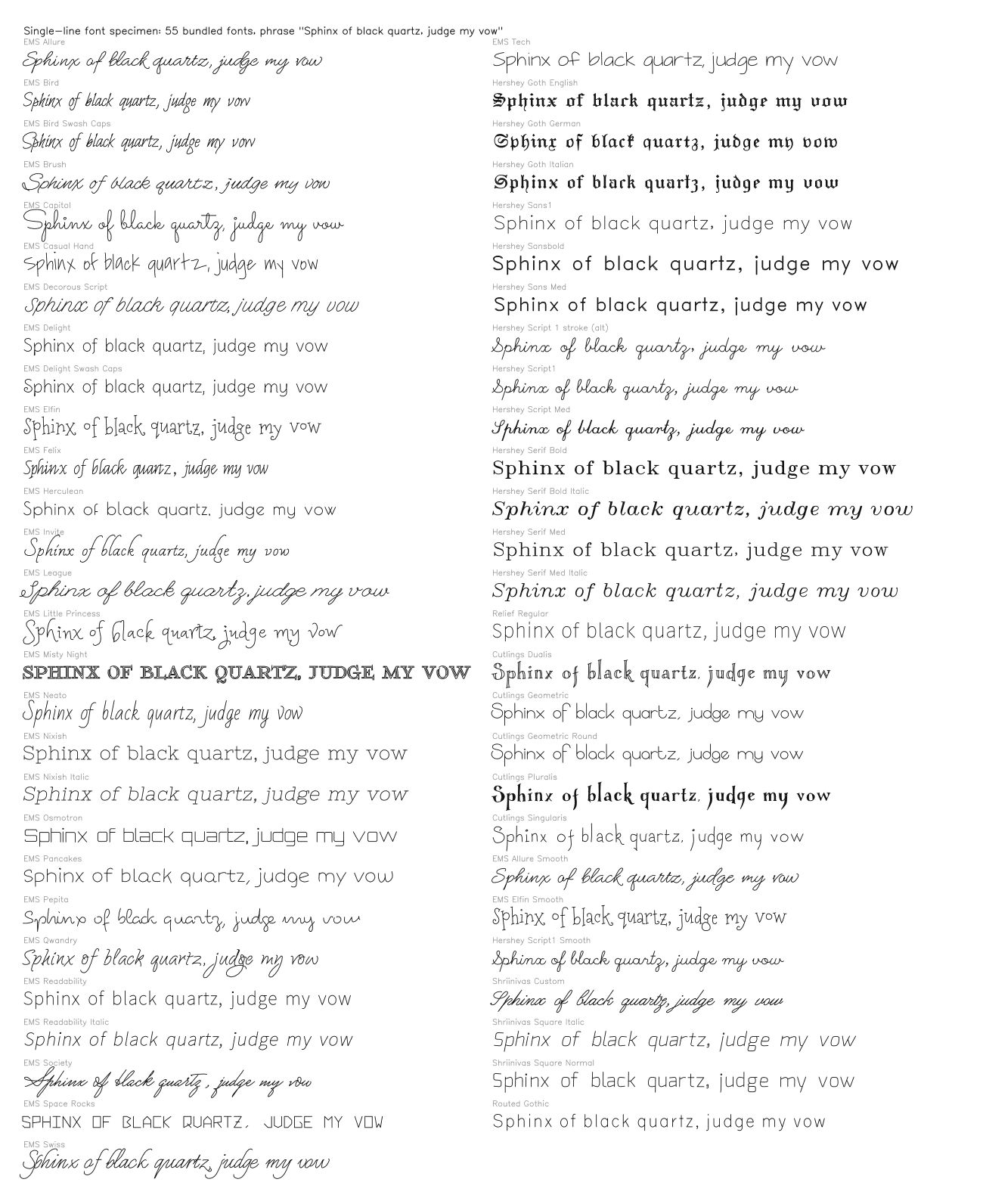
If a character is missing, try another font. Small letters and wide pens fight each other, so size and spacing matter more on paper than on screen, and a thicker displayed stroke will not rescue an unsuitable font.
Import font… accepts supported custom fonts. Start with a bundled font so your first result is reproducible, and follow the import dialog for formats. About this font, where it appears, has attribution and licensing.
Troubleshoot before sending to the machine
- Letters are drawn twice, once around each edge. You used an outlined typeface rather than a stroke font.
- Letters overlap. Adjust character spacing and look at the font at its final size.
- The text is missing from the download. Wait for the font to load, check the layer content, and make sure its paths sit on the page.
- A background came along uninvited. Turn on Export text only and download again.
- The drawing is the wrong size. Check units and dimensions in your machine software before plotting.
More artwork tools are in the SVG generators directory, and software for sending files in plotter control tools. If lettering runs past the edge of your composition, the SVG cropping guide covers trimming it. The sample here is a browser export; I have not plotted this exact file.