How to Crop an SVG for Pen Plotting
Trim vector paths at a boundary instead of hiding them behind a mask, using a downloadable corgi drawing and three crop shapes to compare.
By DrawingBots · Published
Crop paths, not just the preview
A pen plotter follows vector paths. An SVG clipping mask only hides the ends of a line on screen. The line underneath is still whole, and plotting software that ignores the mask will happily draw all of it. A geometric crop is different. It cuts the paths themselves at the boundary and throws away whatever falls outside.
That is what SVG Cropper does. Use it to frame a drawing, or to keep only the part of a dense pattern that sits inside an outline. It prepares the file and nothing more. Sending it to a machine is your plotting software’s job.
Start with the practice drawing
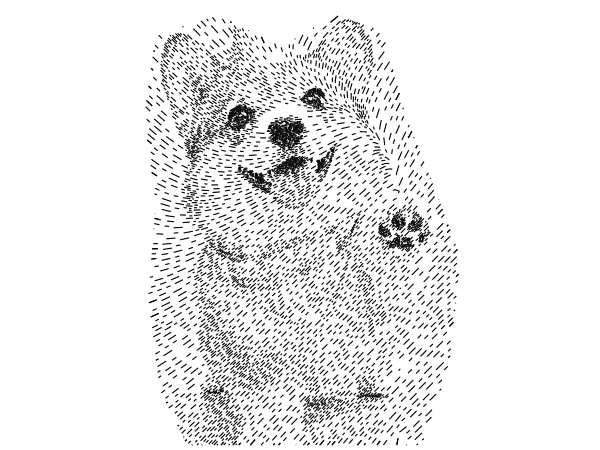
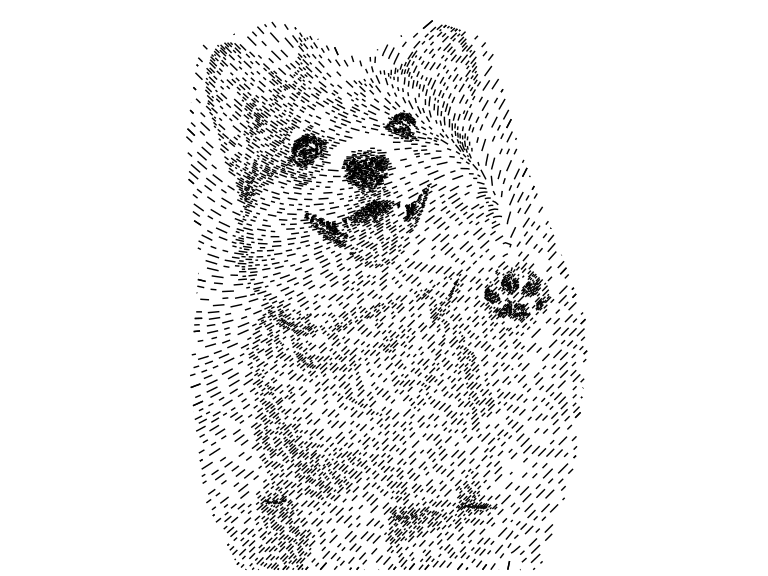
The practice file is a corgi photo run through the Flow Field algorithm in Image to SVG, then sorted in SVG Optimizer. It is a typical plotter file: 5,551 short open paths, about 11,300 points, 312 KB, on a 768 × 576 unit page declared as 20.32 × 15.24 cm. It makes a good test because every path crosses the boundary somewhere.
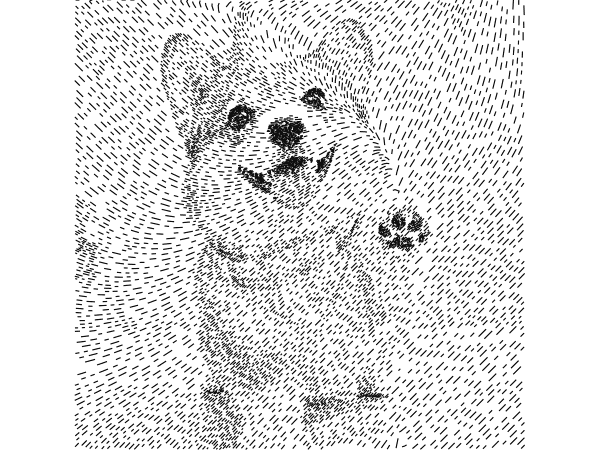
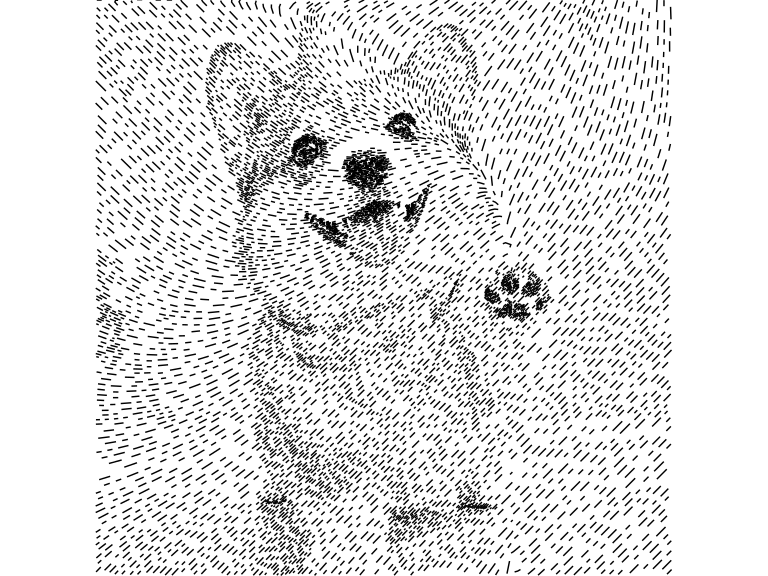
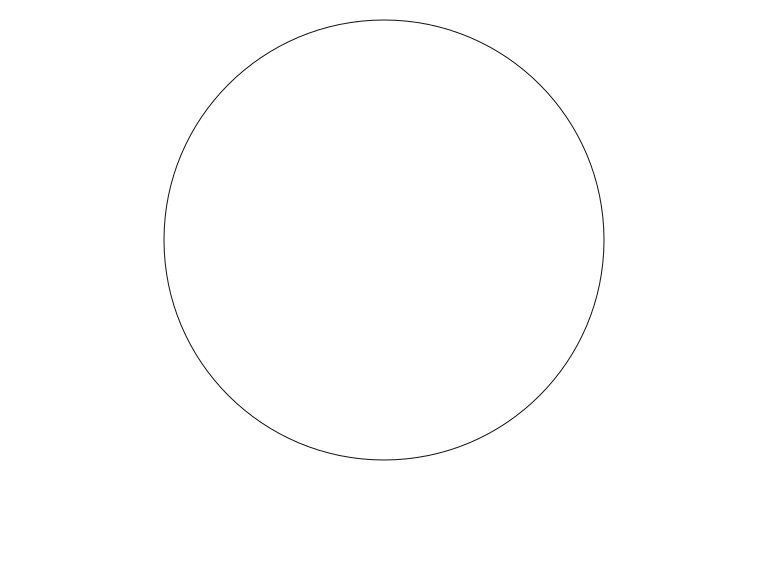
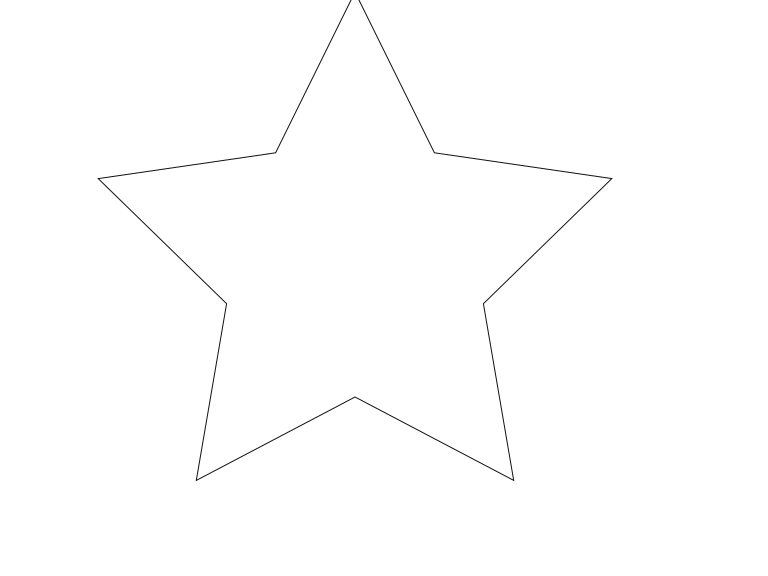
I also made two crop boundaries on the same 768 × 576 page: a circle centred on the dog’s face and a five-point star in the same spot. Keep a copy of the source. A crop throws away everything outside the boundary.
Upload, crop, and export
- Open SVG Cropper and select Upload SVG file…. Choose
dog-flowfield.svg. The drawing appears at its pixel size with a 200 × 200 crop rectangle in the corner. - Leave the source Closed Path setting off. The dashes are open line work.
- Choose a Cropper type. Rectangle, Circle / Ellipse and Polygon give you a handle box to drag and resize over the drawing. Custom Shape lets you click an outline point by point, and SVG File takes an uploaded outline. To get the exact result below, choose SVG File, click Upload cropper SVG… and load
crop-circle.svg. - Leave the optimization toggles off for now. Click Crop. The sidebar reports the path count and shows a thumbnail. Lines that crossed the circle now end exactly on it.
- Click Download SVG. Reopen the file in your plotting software and check the page size before plotting.
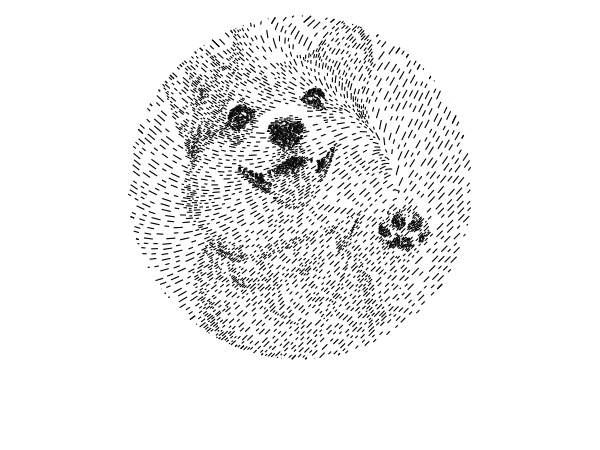
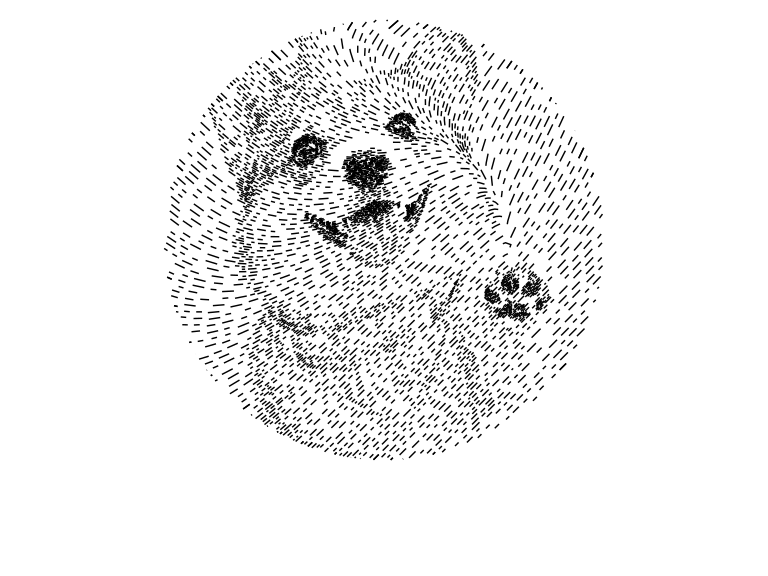
The preview zooms in on what is left, which can fool you into thinking the page shrank. It did not. Check the exported dimensions before you position the paper.
Circle, star and custom shape compared
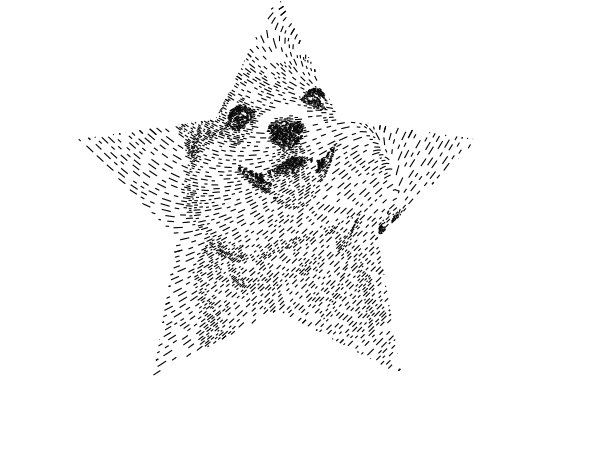
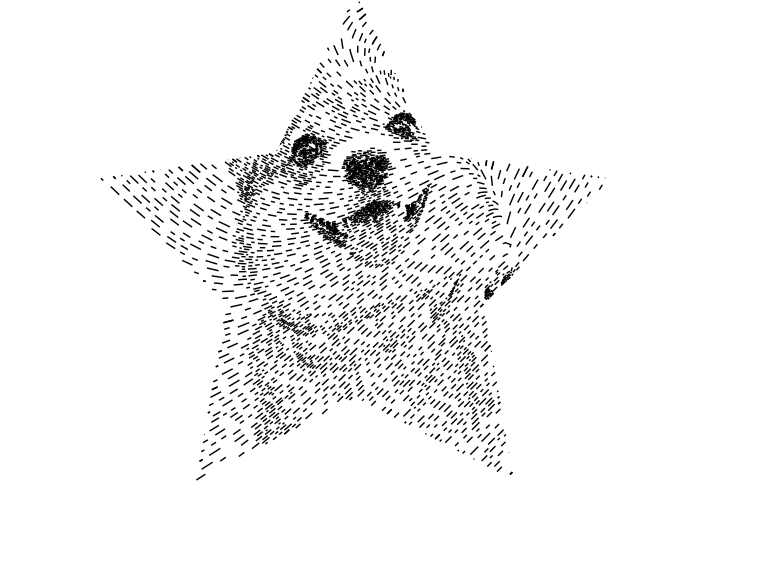
Here is the same source cropped three ways, all with default settings and no optimization. The counts come from the downloaded files.
| Boundary | Paths | Points | File size |
|---|---|---|---|
| Uncropped source | 5,551 | 11,305 | 312 KB |
| Circle | 3,457 | 7,039 | 155 KB |
| Five-point star | 2,642 | 5,358 | 119 KB |
| Custom shape | 4,277 | 8,687 | 192 KB |
Every path in this file is a two-point dash, so the path count is also the number of pen strokes, which makes it the best guide to plot time. The star keeps 48% of the strokes, the circle 62%, the custom outline 77%, and file size follows the same ratio. A dash cut by the boundary becomes a shorter dash rather than vanishing, so the edge stays crisp without anything being redrawn.
Custom Shape is the one I reach for on portraits. Click around the subject on the canvas, use Clear to start over, and Save shape to download the outline so you can reuse it as an SVG File boundary on another drawing.
Choose a shape and preserve detail
The boundary can be a rectangle, a circle or ellipse, a regular polygon, a shape you click out point by point, or an uploaded SVG outline. A custom shape needs at least three points. The polygon controls set the side count and angle.
For filled artwork, turn on Closed Path so the source paths are treated as closed regions. That reveals a few more controls. Quality adjusts intersection precision, Clean Path removes nearby points and small artifacts, Lighten Path drops points within a tolerance, and Simplify Path untangles self-intersecting outlines. Each of these can eat detail, so compare against the source after every change.
For line work, Merge Lines joins nearby endpoints. Push the tolerance too far and it will bridge gaps you meant to keep. Simplify Lines drops points and can flatten curves. Sort for Plotting reorders paths to cut pen-up travel. Start with everything off and add only what the drawing needs.
Check common cropping problems
- Nothing comes out. The boundary probably does not overlap your paths. For an uploaded boundary, check its coordinate system and where it lands on the page.
- Unexpected closing lines or filled regions appear. Look at the source Closed Path setting. Open strokes and closed shapes need different treatment.
- Detail went missing. Lower the cleaning and simplification tolerances and compare with the source.
- Text or a photo did not survive. They were never paths to begin with. A photo embedded in an SVG is still a raster image. Convert it first with the image-to-SVG guide, or set the text with a single-line font.
- The physical size is wrong. Check the document units and scale in the receiving software rather than trusting the browser preview.
SVG Optimizer can do further clean-up. Look at the geometry after any optimization pass. One caveat: the figures on this page are browser exports, and I have not plotted these particular files.